Monitoring Status: The Missing Jira Stage Between Fixed and Resolved

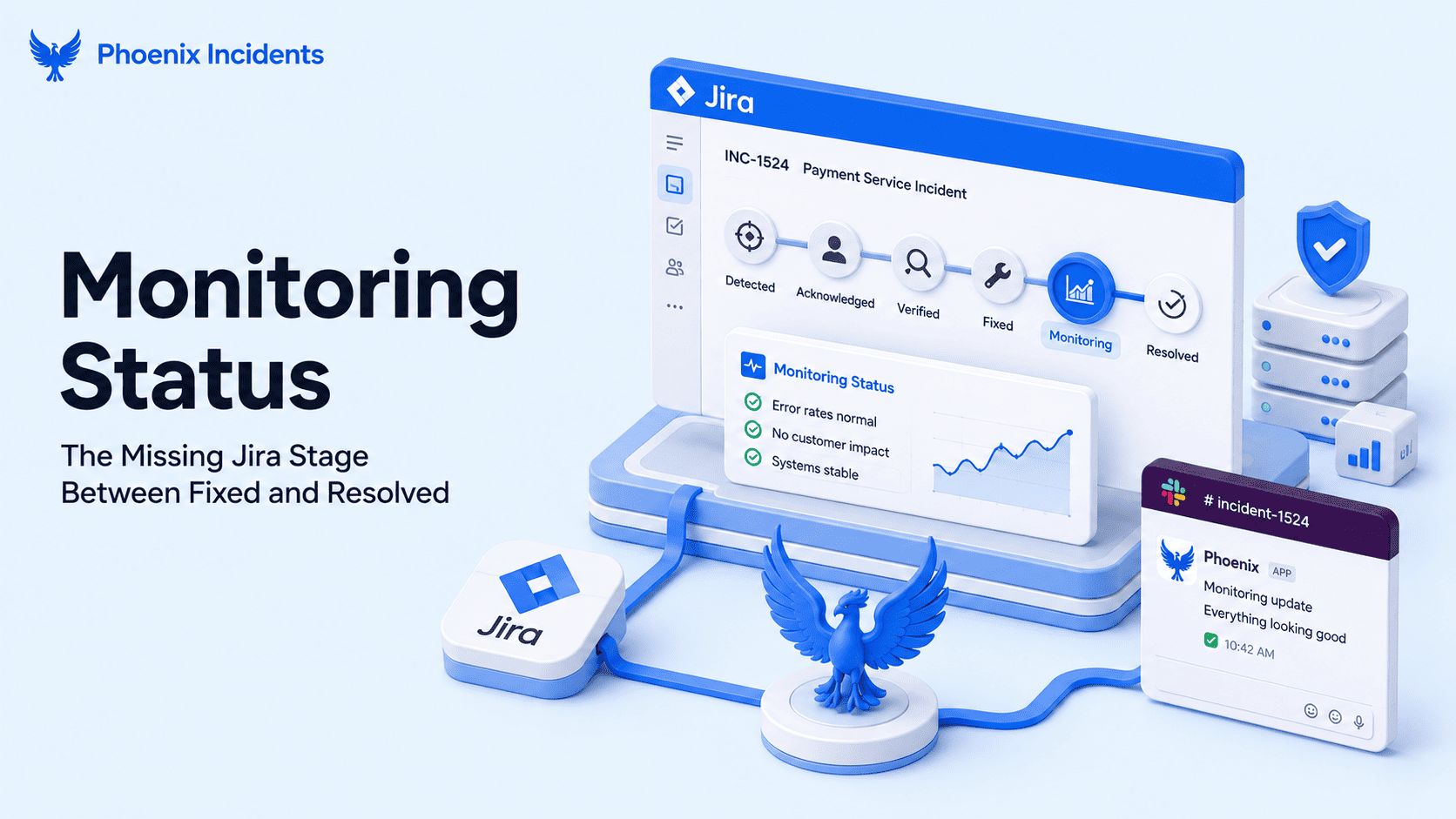
The outage fix went out twenty minutes ago. The error rate has come back down, the dashboards look stable, and the channel has gone quiet for the first time in an hour. Then someone from support asks whether we're done fixing the incident, and nobody can really give a complete answer.
The thing is, you're not sure if you're done, because you don't know yet. The change is deployed but it hasn't been through a real traffic cycle, and the honest answer is that you're watching.
The problem is that "watching" doesn't have a name anywhere in your workflow, so the incident sits in whatever state it was in while you were still firefighting, and everyone reading the ticket draws their own conclusion.
That gap between fixed and resolved is what the new Monitoring Status is for. This post covers why the gap causes trouble in a default Jira workflow, what happens when a responder moves an incident into Monitoring, and what it changes about the numbers you report afterwards.
Jira Gives You Two Wrong Answers After a Fix Ships
Once the fix is out, a standard Jira workflow offers you two places to put the incident, and neither of them describes where you are.
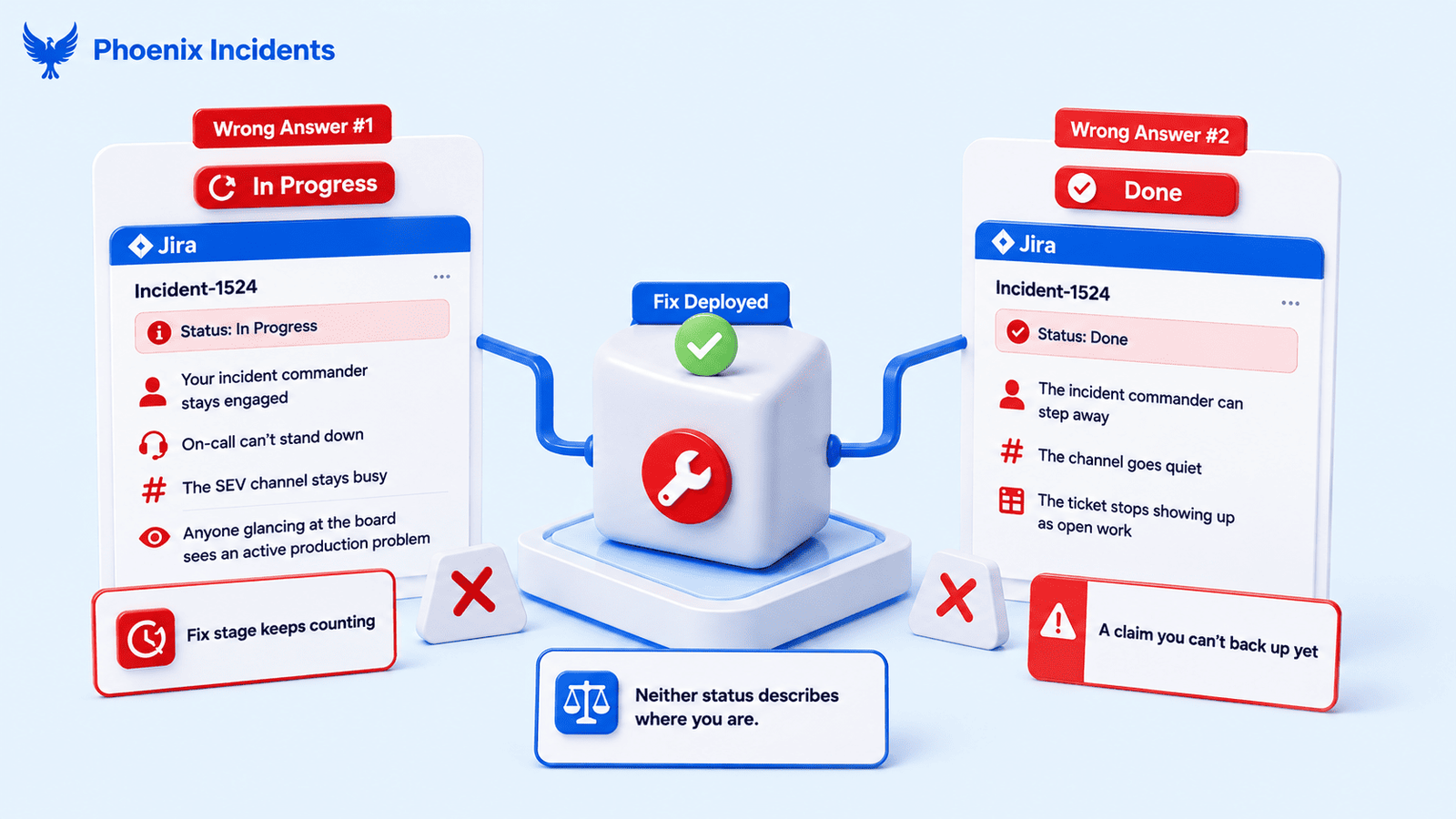
"In Progress" Keeps the Pressure On
Leaving the ticket "in progress" is technically true, since the incident isn't closed. But the ticket is the signal everyone else is reading, and while it sits there:
- Your incident commander stays engaged
- On-call can't stand down
- The SEV channel stays busy
- Anyone glancing at the board sees an active production problem
Meanwhile your Fix stage is still counting. An hour spent watching graphs gets recorded as an hour spent fixing, so when someone reviews the incident later, a fix that took ten minutes reads like one that took seventy.
"Done" Tells the Business Something You Haven't Confirmed
Moving it to "Done" makes all of that stop at once. The incident commander can step away, the channel goes quiet, and the ticket stops showing up as open work on the board, which is why people do it.
But it's also a claim you can't back up yet because you haven't monitored it. Stakeholders read "Done" as "incident over", so the status page gets updated, the executive summary goes out, and everyone moves on.
Now, if the fix regresses forty minutes later you're reopening a closed incident, sending a correction, and explaining why the first message was premature, which is all extra work you could have avoided.
| Where the ticket sits | What stakeholders read | What it does to your metrics |
|---|---|---|
| In Progress | Still broken, still burning | Fix time inflates through the whole observation window |
| Done | Fully resolved and closed out | Fix time stops early, and a regression means reopening |
| Monitoring | Fix is out, we're watching | Fix time closes, observation time tracked separately |
Most teams have already invented a workaround for this. Someone posts "fix is out, watching for 30" in the channel, drops a comment on the ticket, and the team runs on that. It works right up until the shift changes, or the person who posted it logs off, or someone joins the incident late and reads the ticket instead of scrolling back through Slack. The real state of your incident is sitting in one person's memory rather than in the workflow. That gap is one of several you run into when designing a Jira incident workflow. Jira's standard statuses come from tracking everyday tasks, where a piece of work is either still being done or finished. An incident has a stage in between those two, and there's no standard status that describes it.
What the "Monitoring Status" Does
Monitoring is a workflow status that sits between your fix work and your resolution, and it exists to describe exactly the state you're in when the change is out and you're waiting to see what happens.
How a Responder Moves an Incident Into "Monitoring"
The transition is manual and takes one action. Once the fix is deployed, whoever is working the incident moves it into "Monitoring", either from the Slack channel where the response is happening or from the Jira issue itself. There's nothing to configure ahead of time and no window to set.
What Changes the Moment You Transition
- The Fix stage closes and stops accumulating time
- The Monitor clock starts
- The incident stays open and owned, so nothing gets archived early
- Stakeholders watching the ticket see that the fire is out, but also see that there's no resolution claim yet as the fix is still being observed
Most of the pressure to close an incident early comes from people outside the response asking for an update, and the reason they keep asking is that "In Progress" doesn't tell them anything has changed. But "Monitoring" does.
Why a Responder Triggers This Instead of a Timer
An automatic window would be easier to build but worse to use. The responder watching the graphs is the only person who knows whether the deploy was clean or whether it went out in stages and half the servers are still running the old version.
A fixed window could be too short when a change goes out gradually and needs an hour before enough users have worked with it to tell you anything. It could also be too long when someone switches a setting back and you can see within ninety seconds that it has worked. Judgement about when the fix is really out belongs to the person holding the incident. What the workflow does is record that judgement somewhere other than a chat message.
What Monitoring Status Does to Your MTTR Breakdown
Before this stage existed, a long observation window and a genuinely difficult fix looked identical in your reporting, because both of them showed up as "Time to Fix". An engineer who solved a problem in fifteen minutes and then sat watching for an hour produced the same metric as one who spent seventy five minutes untangling the actual bug. Now with the "Monitoring Status" stage, those two metrics show up differently.
| Stage | What it measures | When it stops |
|---|---|---|
| Detect | Problem starts to someone knowing about it | Incident is raised |
| Ack | Alert fires to a human picking it up | Responder acknowledges |
| Verify | Confirming the incident is real and scoping impact | Team commits to a fix path |
| Fix | Working the fix until it's deployed | Transition to Monitoring |
| Monitor | Watching for stability under real traffic | Transition to Resolved |
Separating Fix Complexity From Validation Time
Take two incidents that both closed in ninety minutes. Split by stage, one spent seventy five minutes in Fix and fifteen in Monitor. The other spent twenty in Fix and seventy in Monitor. Those are two different stories and they need two different responses.
The first team hit something hard and might need better runbooks or more eyes on that service. The second team fixed the thing quickly and then waited, which was probably the right call. Nothing about how they handled it needs improving, so pushing them to be faster would be aimed at the wrong thing. If all you can see is the ninety minute total, you'd give both incidents the same feedback and it wouldn't work for one of them. Splitting your response into stage-by-stage MTTR in Lifecycle Charts is what makes that difference visible, and "Monitor" is the stage that keeps patience from looking like delay.
Is "Monitor" the Same as "Verify"?
These two sound similar but they sit on opposite sides of the fix.
- Verify comes first. Here, you're confirming the incident, working out what's affected and how badly, and deciding what you're going to do about it.
- Monitor comes last. The fix is already out and you're confirming it against real traffic.
Both exist because an incident can be verified in two minutes and monitored for an hour, or verified for forty minutes and confirmed stable almost immediately. If you collapse them into one number you lose track of which half of your response is slow, and slowness in those two stages has completely different fixes.
Using "Monitoring Status" on Your Next Incident
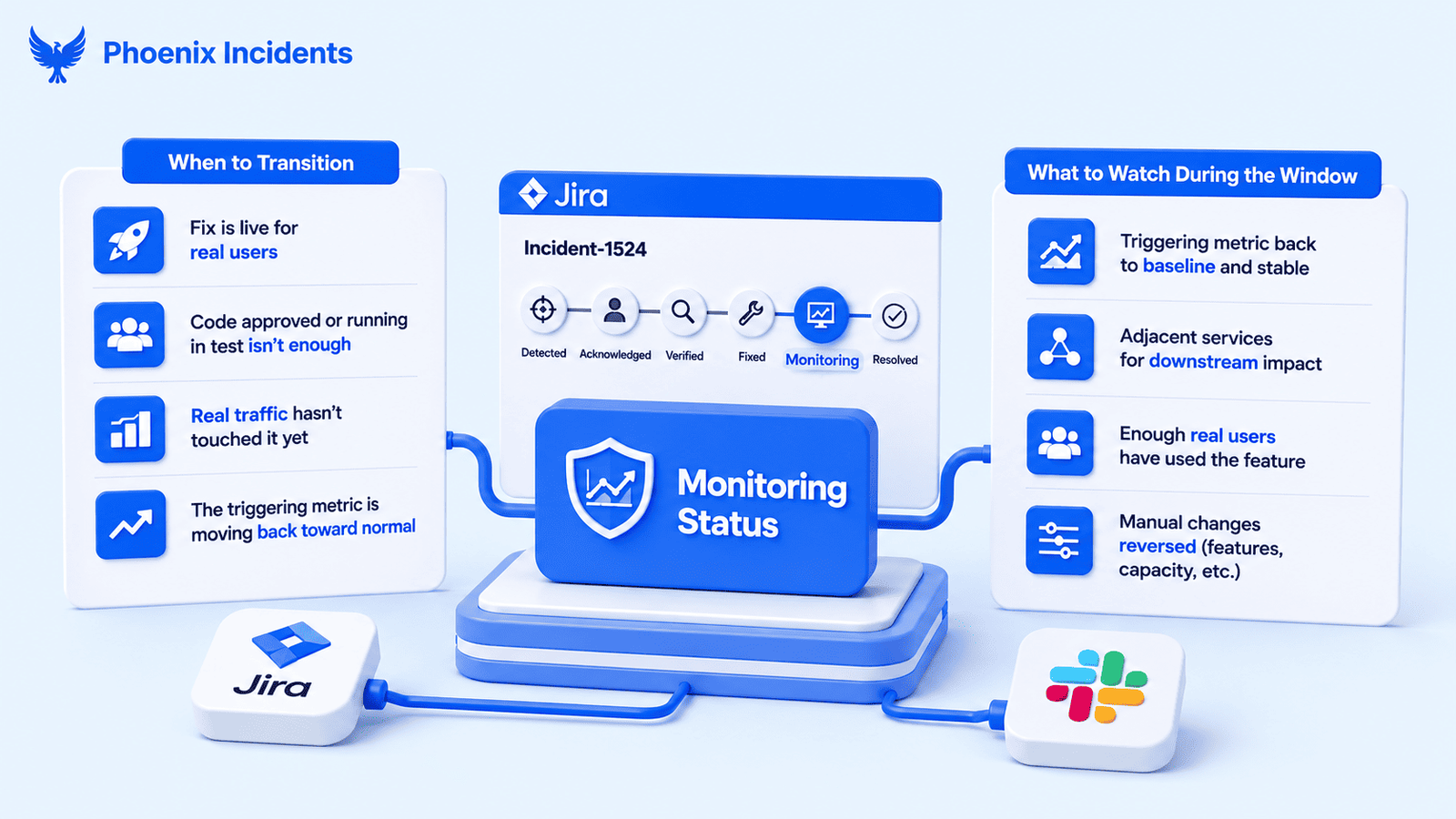
When to Transition
Move the incident into "Monitoring" once the fix is live for real users. Getting the code approved isn't enough, and neither is having it running in a test environment, because in both cases no real traffic has touched it yet. The number that set off the incident should also be heading back toward normal by this point, even if it hasn't fully settled.
What to Watch During the Window
- The metric that triggered the incident going back to the baseline and staying there
- Adjacent services that might pick up a downstream effect from your change
- Whether enough people have used the affected feature since the fix went out, which is easy to miss during quiet hours
- Anything you switched off or propped up by hand during the incident, like a feature you disabled or extra servers you added, because all of that has to be put back before you can call it resolved
How to Decide the Monitoring Window Is Over
Work through these in order, and when you reach the end you're ready to resolve.
- Match the window to what you changed: A setting switched back shows in the dashboard within seconds because the effect is immediate. But a cache rebuild, a data migration or anything that only runs on a schedule needs a full cycle before you know anything.
- Check the metric has stayed normal while people were using the system: A quiet hour doesn't prove much, because the part you fixed might not have been touched in that time.
- Undo the temporary changes you made during the incident: Switch the feature you turned off back on, remove the extra servers you added, and take out any quick workaround that was only meant to last until the fix landed.
- Move the incident to Resolved: By this point you're recording something you know has worked rather than something you hoped worked.
The point of the window is to give yourself enough evidence that the incident was resolved. Measuring your response this way also gives you an MTTR that reflects the actual work done.
Give Your Team a Stage to Monitor Fixes
Monitoring Status is part of Phoenix Incidents, which runs inside Jira, so there's no separate tool for your team to learn and nowhere new to log in. Add the status to your incident workflow and the next time a fix goes out, your responders get a state that describes where they really are, the people waiting on an update can see the fire is out, and your Fix time stops swallowing every minute you spend watching the dashboards.
Install Phoenix Incidents and give your team a stage to confirm the fix held before they close the incident.
Frequently Asked Questions
1. What Happens to My Time to Fix Metric When I Use Monitoring?
It stops at the moment you transition. Everything after that lands in the Monitor bucket, so your observation window no longer inflates the fix number.
2. What if a Responder Forgets to Transition and Goes Straight to Done?
That incident's observation time stays inside Fix and you lose the split. The transition is manual, so make it part of what your team expects when a fix goes out.
3. What Happens if the Fix Fails While the Incident Is in Monitoring?
3. Move it back out of Monitoring and keep working. Catching it here is far cheaper than catching it after you've told everyone the incident is resolved.
4. Is Monitoring Status the Same as a Status Page?
No. A status page tells your customers what's happening. Monitoring Status tells your own team where the incident stands inside Jira. You'd still update the status page separately.
5. Does Time in Monitoring Count Toward Your SLA?
It depends on how your agreement is worded. Stopping the Fix clock changes how you measure your own response, not what you promised a customer. If the commitment is tied to resolution, it runs until you resolve.